


How to Set Up a Zero-Based Budget in Excel or Google Sheets

How to Set Up a Zero-Based Budget in Excel or Google Sheets
Zero-based budgeting gives every dollar of take-home pay a named job until the leftover reads zero. A zero-based budget means income minus every expense you have planned equals zero - nothing sits unassigned. This page is the build: the tabs, the category list, the formulas, and the month-end reset. If you want the method explained and weighed against percentage budgeting, read zero-based vs. 50/30/20 first, then come back here to build it.
How does zero-based budgeting work?
Zero-based budgeting works from one equation: monthly income minus total expenses equals zero. Traditional budgeting starts from last month's numbers and nudges them; a zero-based budget requires every line to be justified again from scratch, so nothing survives on inertia. A zero-based budgeting example makes it concrete - if your monthly income is your take-home pay and your planned expenses come in under it, the remainder is not spare cash. It goes to a savings line, a sinking fund, or an extra debt payment until the equation closes. That is the whole budgeting method; everything below is how to make a zero-based budget hold in a spreadsheet.
Advantages and disadvantages of zero-based budgeting
The advantages of zero-based budgeting are control and visibility: every dollar is accounted for, and no line survives simply because it appeared in last month's budget - which is exactly the drift traditional budgeting allows. The disadvantages of zero-based budgeting are time and upkeep: it is the most hands-on budgeting system in common use, and it rewards regular logging more than any other method. The cons of zero-based budgeting weigh heaviest when your month is unpredictable, in which case the best budget for you is the simpler one you will actually maintain. Use zero-based budgeting when you want per-dollar control and can spend a few minutes a week keeping the sheet current.
What you need before you open a spreadsheet
Three things: your take-home income for the month, three months of bank and card statements, and about two hours. The statements are not optional - a zero-based budget is built on your real expenses, not on the expenses you assume you have. Download the CSV files before you start.
Everything else in zero-based budgeting is mechanical. Once the numbers are in front of you, the sheet takes shape in one sitting.
How do you set up the tabs?
Create three tabs in one workbook: Income, Transactions, and Summary. Income holds your sources and a total. Transactions is a running log of what you spend. Summary is the control panel where the budget is checked against zero. Keep this separation - it is what keeps the sheet easy to read months from now.
The same three-tab layout works identically in Excel and Google Sheets. Every formula below runs in both.
What goes on the Income tab?
List each source in its own row with a monthly amount: paycheck, second job, freelance income, rental income, child support, benefits. Total them in one cell. That total is the number you have to assign down to zero - nothing else in the sheet matters until it is right.
Set up four columns: Source, Type (fixed or variable), Frequency, Monthly Amount. Put the total in the row below the last source.
=SUM(D2:D10)
Name that cell TotalIncome so the Summary tab can reference it without cell hunting. In Excel: select the cell, type the name in the Name Box. In Google Sheets: Data -> Named ranges.
If your income moves month to month, enter your lowest month from the past year, not your average. That one choice does more than anything else to set your first month up to work. Variable income has its own mechanics - see budgeting on irregular income.
How do you build the category list?
Open your three months of statements and sort your expenditures into named categories. Go granular - not "food" but groceries, restaurants, and coffee. Zero-based budgeting only works if each line can be justified on its own, and a broad category hides the financial decisions you need to see.
Group the categories into four blocks:
Fixed expenses - rent or mortgage, car payment, insurance premiums, phone, internet, minimum debt payments, subscriptions.
Variable expenses - groceries, gas, utilities, dining out, personal care, household supplies, pet costs.
Sinking funds - car maintenance, dental, holiday gifts, travel, home repairs, annual renewals.
Savings and debt paydown - emergency fund, retirement contributions, extra payments above minimums.
How many categories should you use?
Start with about 15 and expand toward 30 as you learn where your spending actually clusters. Fewer than 15 and you are budgeting in blocks too wide to control. More than 40 on month one and the sheet gets harder to keep up with - you can always add categories later, once you know where they are actually useful.
Add a category only when you have a spending decision to make inside it. If "coffee" and "restaurants" always move together, keep them as one line until they don't.
How do you enter the budget amounts?
On the Summary tab, build one row per category with three columns: Budgeted, Actual, and Remaining, so planned and actual expenditures sit side by side. Fill the Budgeted column using your three-month averages as the starting figure, adjusted for what you have decided to change. Leave Actual empty - it fills as the month runs.
The rule that defines the method: you do not carry last month's figure forward untouched. Each amount gets set on purpose, every month.
What formula sums each category?
SUMIF pulls each category's actual spending out of the Transactions log. On the Transactions tab use columns A (Date), B (Category), C (Amount). Then on the Summary tab, with the category name in column A:
=SUMIF(Transactions!$B:$B, A5, Transactions!$C:$C)
Enter this in the Actual column of row 5 and drag down the whole category list. Each row now reads the log and reports its own total. The dollar signs lock the referenced columns so the drag does not shift them.
What formula shows what's left in a category?
Remaining is Budgeted minus Actual. With Budgeted in column B and Actual in column C:
=B5-C5
Drag it down the category list. A positive number means room left. A negative number means the category is over and has to be covered by pulling from another line. Nothing else about the budget changes - the total is still fixed.
What formula drives the whole budget to zero?
At the bottom of the Summary tab, subtract the sum of all budgeted amounts from your income total:
=TotalIncome-SUM(B5:B40)
This cell must read 0. That is the entire test.
If it reads positive, you have dollars with no job - push them into a savings line, a sinking fund, or an extra debt payment until the cell hits zero. If it reads negative, you have committed more than you earn; cut variable expenses or a discretionary line. Do not leave the cell anything but zero when the month starts.
Add a second control cell that watches actual spending against income as the month runs:
=TotalIncome-SUM(C5:C40)
That is your live remainder - how many dollars of the month's income are still unspent right now.
How do you make overspending visible?
Set conditional formatting on the Remaining column so the sheet reads at a glance instead of requiring you to scan numbers. Select the column, then in Excel use Home -> Conditional Formatting -> New Rule, or in Google Sheets Format -> Conditional formatting.
Three rules cover it:
- Red fill when the cell is less than 0 - the category is over.
- Yellow fill when the cell is between 0 and 25 - the category is close to its limit.
- Green fill when the cell is above 25 - room to spare.
Set one more rule on the zero-check cell: red if it does not equal 0, green if it does. That single cell tells you whether the budget is still balanced.
How do you log transactions during the month?
Enter spending on the Transactions tab at least weekly - daily if you use cards heavily. Three columns is enough: date, category, amount. The SUMIF formulas pick each entry up automatically, so no other tab needs touching.
Type the category name exactly as it appears on the Summary tab or the SUMIF will miss it. Use a dropdown to remove that risk: select column B on the Transactions tab, then Data -> Data Validation, and point the list at your Summary category range.
To skip manual entry, export a CSV from your bank, paste date and amount into the Transactions tab, and fill in the category column. A month of transactions takes a few minutes this way.
How do you handle irregular costs?
Divide the annual cost by 12 and budget that amount every month into a sinking fund line. Car maintenance at an estimated $900 a year becomes $75 a month. When the repair bill lands, the money is already sitting in a category with its name on it.
This one structure prevents most first-year failures. Your budget might balance perfectly for months without sinking funds, then break the week the first annual bill lands - those expenses were always coming, they just were not in the sheet.
Keep the larger funds in a separate savings account rather than in checking. Money that shares an account with grocery spending tends to become grocery spending.
How do you reset the sheet at month end?
On the last day of the month, log the remaining transactions, then run five steps in order:
- Copy the whole workbook and rename it for next month.
- Clear the Transactions tab on the copy.
- Clear the Actual column values - leave the
SUMIFformulas in place, they will refill. - Adjust the Budgeted column using what the closed month showed you.
- Confirm the zero-check cell reads
0before the month starts.
Step 4 is the one that matters. Zero-based budgeting treats month one as a measurement, not a verdict - the categories you set are estimates, and the closed month tells you which ones to adjust.
Can you download a ready-made sheet instead?
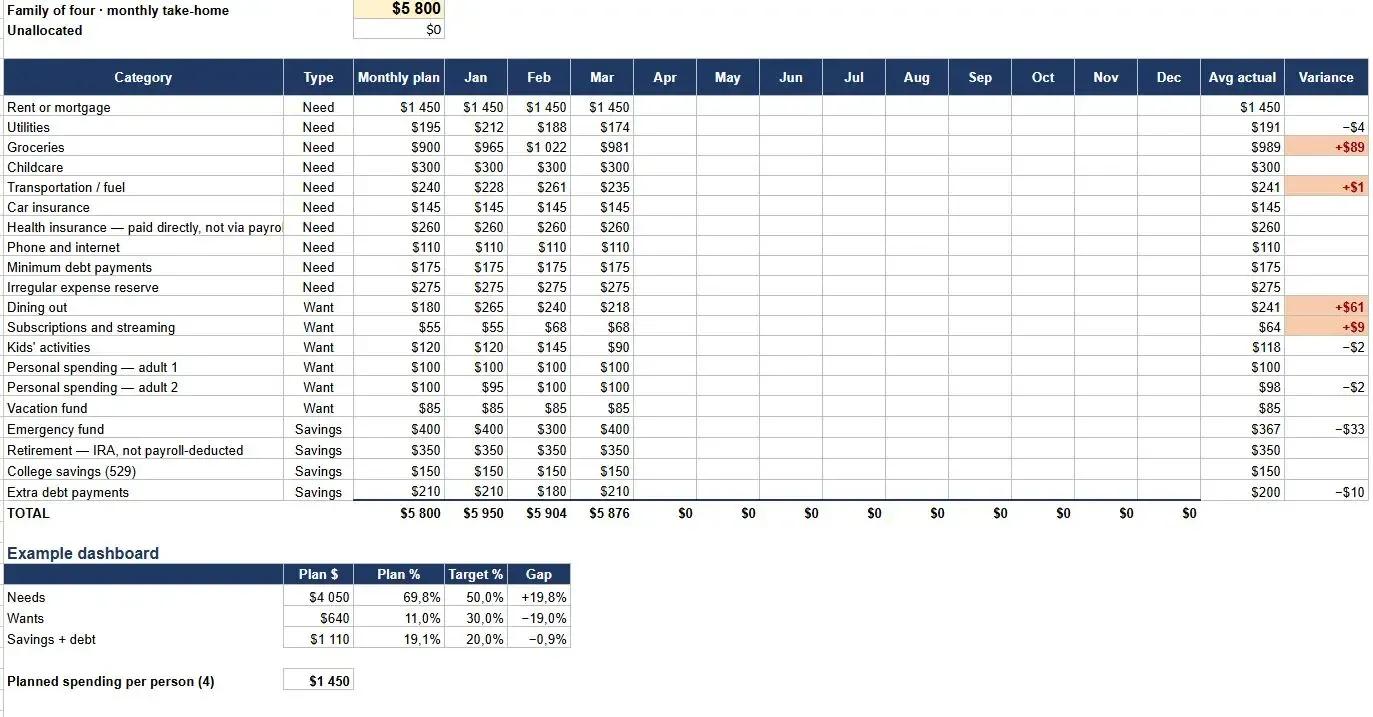
Yes - building from scratch is optional, and a prebuilt file cuts setup to under an hour. Our budget template comes with the three tabs, the category structure, and all the formulas above already entered, so you only fill in your own numbers.
Building it yourself is still worth it if you want to change the structure later. You cannot modify a sheet whose formulas you don't understand.
How do you set the same budget up in YNAB?
YNAB runs zero-based budgeting natively, so there are no formulas to enter. Link your accounts, let income land in the pool YNAB calls Ready to Assign, then push that number to $0.00 by giving each category an amount. The zero-check is built into the interface.
Setup runs in four moves: add your accounts, build your category groups to line up with the fixed/variable/sinking/savings structure above, assign every dollar, then categorize transactions as they import.
How do you assign dollars in YNAB?
Work down in priority order so that if you run out mid-list, what's left unfunded is discretionary rather than essential:
- Fixed obligations - rent, insurance, minimum payments.
- Essential variables - groceries, utilities, gas.
- Sinking funds.
- Savings and extra debt payments.
- Discretionary spending.
When Ready to Assign reads $0.00, the month is set.
What do you do when a category runs over in YNAB?
Move money from a category that still has a balance into the one that went over. YNAB flags overspent categories in red and the fix is a drag, not a formula. The total stays at zero because you funded the overage from inside the same budget.
This is the same operation as editing two cells in the spreadsheet version. In YNAB it takes one action instead of two.
Excel, Google Sheets, or YNAB?
Use Google Sheets if you want it free and shared across devices. Use Excel if you already pay for Microsoft 365 and want to build custom logic. Use YNAB if you want bank sync, a mobile app, and the zero-check enforced for you - it runs about $99 a year.
Sheets and Excel are functionally identical for this job; every formula above works in both. All three run the same zero-based budgeting logic - the real difference is YNAB automating the import and the arithmetic in exchange for a subscription.
The tool that works is the one you still open in week six - pick one and give it a full month before you consider switching.
Who zero-based budgeting is not for
It does not suit every financial situation, and there is no point forcing it.
If your income is unpredictable month to month, the assign-everything-upfront step has nothing solid to stand on. You can adapt it by budgeting last month's income instead of this month's, but that requires a one-month buffer you may not have yet. Start with budgeting on irregular income instead.
If you will not log transactions, the numbers stop reflecting reality fast. This method rewards a quick weekly check-in more than any other budgeting style - a percentage-based split needs far less upkeep, and that comparison is in the method breakdown.
If you have never tracked spending at all, three months of plain tracking will give you a clearer financial picture and make the category list far more accurate. Building a household budget from scratch covers that groundwork.
Frequently asked questions
Can I run a zero-based budget in cash?
Yes - pull out each category's amount and hold it separately, which is the cash envelope method in practice. The planning step is identical; only the storage changes from a spreadsheet row to a physical envelope.
Does Google Sheets support every formula in this guide?
Yes. SUM, SUMIF, named ranges, data validation, and conditional formatting all behave the same way in Google Sheets as in Excel, so a zero-based budgeting sheet built in one opens correctly in the other. Sheets slows on very large files, but a personal budget never reaches that size.
How long does the setup take?
Two to four hours for a build from scratch, most of it spent categorizing three months of statements rather than entering formulas. Monthly upkeep afterward runs 30 to 60 minutes: weekly transaction entry plus the month-end reset.
What if my zero-check cell will not reach zero?
A positive number means unassigned dollars - send them to a savings line or an extra debt payment. A negative number means you budgeted more than you earn, so a variable category has to come down. Round to whole dollars; cents-level mismatches are usually a stray decimal in one Budgeted cell.

Denis Goncharenko
Head of Content
Editorial Policy: no secondary statistics. Every claim is linked to an official source and dated — datasets and methods are open for review.

Was this article helpful?
Same blogs

Saving Money on Groceries Is Not a Test of Willpower
Federal data shows six grocery categories moving at different rates, not one bill rising evenly. Why the national CPI, the CES spending survey, and USDA's own forecast are each the wrong number to budget against - and how to build your own monthly figure from 8 to 12 weeks of receipts instead.
Free Family Budget Template for Excel and Google Sheets
A free household budget spreadsheet for families of three to five, with categories pre-filled and a separate tab that spreads yearly bills like insurance and registration across all twelve months. No email, no sign-up, works in Excel and Google Sheets.

Why Parent PLUS Loans Have Become a Hidden Retirement Crisis for American Parents
Parent PLUS loans can follow parents into retirement, reduce savings, and expose Social Security benefits to offset after default. Here is what near-retirement borrowers should know.